Baseline your servers and optimize your applications with Site24x7 SQL monitoring tool.
SQL Server long running queries are one of the most common causes of database performance degradation. When a query takes longer than expected to execute, it consumes excessive CPU, memory, and I/O resources, creating a cascading effect that slows down other processes on the same server and increases response times for end users.
Long running queries in SQL Server can stem from missing indexes, outdated statistics, inefficient query logic, or resource contention from blocking and locking. Identifying whether a query is actively consuming CPU (a running query) or stalled waiting for a resource (a waiting query) is the essential first step toward resolution.
This article walks you through how to find long running queries in SQL Server using dynamic management views (DMVs), execution plans, and Query Store. You will learn how to diagnose the root cause of slow performance and apply targeted fixes to restore optimal database operations.
Before you can fix SQL Server long running queries, you need to identify them. SQL Server provides several dynamic management views (DMVs) that expose real-time and historical query performance data without requiring third-party tools.
To identify queries that are running right now and consuming excessive time, use the sys.dm_exec_requests DMV joined with sys.dm_exec_sessions. This approach shows active sessions along with their elapsed time, CPU consumption, and the SQL text being executed.
SELECT
  r.session_id,
  r.status,
  r.total_elapsed_time AS duration_ms,
  r.cpu_time AS cpu_time_ms,
  r.total_elapsed_time - r.cpu_time AS wait_time_ms,
  r.logical_reads,
  SUBSTRING(st.text, (r.statement_start_offset / 2) + 1,
    ((CASE r.statement_end_offset
        WHEN -1 THEN DATALENGTH(st.text)
        ELSE r.statement_end_offset
      END - r.statement_start_offset) / 2) + 1
  ) AS statement_text
FROM sys.dm_exec_requests AS r
  CROSS APPLY sys.dm_exec_sql_text(r.sql_handle) AS st
ORDER BY r.total_elapsed_time DESC;
This query returns all active requests sorted by duration, making it easy to spot the longest running queries on your SQL Server instance. The wait_time_ms calculation helps you determine whether the query is actively using CPU or waiting for a resource.
To analyze queries that have already completed, use the sys.dm_exec_query_stats view. This DMV stores aggregated execution statistics for cached query plans, including total elapsed time, worker time, and logical reads across all executions.
SELECT TOP 20
  qs.total_elapsed_time / qs.execution_count AS avg_elapsed_time,
  qs.total_worker_time / qs.execution_count AS avg_cpu_time,
  qs.total_logical_reads / qs.execution_count AS avg_logical_reads,
  qs.execution_count,
  SUBSTRING(st.text, (qs.statement_start_offset / 2) + 1,
    ((CASE qs.statement_end_offset
        WHEN -1 THEN DATALENGTH(st.text)
        ELSE qs.statement_end_offset
      END - qs.statement_start_offset) / 2) + 1
  ) AS statement_text,
  qp.query_plan
FROM sys.dm_exec_query_stats AS qs
  CROSS APPLY sys.dm_exec_sql_text(qs.sql_handle) AS st
  CROSS APPLY sys.dm_exec_query_plan(qs.plan_handle) AS qp
ORDER BY qs.total_elapsed_time / qs.execution_count DESC;
Two key columns to compare are avg_elapsed_time and avg_cpu_time. If the CPU time is close to the elapsed time, the query is CPU-bound. If the elapsed time is significantly higher, the query is spending time waiting for resources such as locks, I/O, or memory.
Query Store, available in SQL Server 2016 and later, provides persistent storage of query execution statistics that survives server restarts. Unlike DMV data, which is cleared when the plan cache is flushed, Query Store retains historical performance data over configurable time periods.
To enable Query Store on a database, run:
ALTER DATABASE [YourDatabase] SET QUERY_STORE = ON;
Once enabled, you can use the built-in reports in SQL Server Management Studio (SSMS) under the Query Store node. The Top Resource Consuming Queries report sorts queries by total duration, CPU time, or execution count, making it easy to identify consistently long running queries over time. You can also compare plan performance across different time windows to detect regressions.
Once you have identified your long running queries in SQL Server, the next step is to understand why they are slow. Query slowness falls into two broad categories: the query is either actively running and consuming resources, or it is waiting for a resource to become available.
A waiting query cannot proceed because it is blocked by a resource dependency. SQL Server classifies waits into three categories:
Use the sys.dm_os_wait_stats view to identify the most common wait types on your system. This view aggregates wait data since the last SQL Server restart or manual reset, giving you a broad picture of where contention exists.
To find currently waiting queries along with their specific wait types, run:
SELECT r.session_id, r.wait_type, r.wait_time AS wait_time_ms
FROM sys.dm_exec_requests r
  JOIN sys.dm_exec_sessions s ON r.session_id = s.session_id
WHERE r.wait_time > 500
  AND s.is_user_process = 1;
Common resolutions for wait-based bottlenecks include increasing hardware resources, using query hints such as MAXDOP to control parallelism, optimizing locking strategies, and resolving external dependency issues.
A running query is one where the CPU time is close to or exceeds the total elapsed time. This means the query is actively consuming processor resources rather than sitting idle. High CPU consumption typically results from large table scans, missing indexes, or inefficient query logic that forces the engine to process more data than necessary.
You can use the execution plan to understand what is causing running bottlenecks. To view the query plan in SQL Server, run the SET STATISTICS PROFILE ON statement before running the query. This provides the plan directly after the results of the query. Another option is to use the sys.dm_exec_query_plan view, which returns the plan for a cached query.
As you examine the query plan, look for operators that are more expensive than others, such as the type of joins, lack of index usage, and caching. You can also look for operators with multiple rows or high data volume passing through them, which may contribute to bottlenecks.
Resolving CPU-bound long running queries typically involves modifying query logic, adding appropriate indexes, updating statistics, or rewriting subqueries as joins.
When SQL Server executes a query using multiple processor cores simultaneously, the total CPU time can exceed the elapsed time. For example, a query that runs for 2 seconds on 4 parallel threads may report 8 seconds of CPU time. This does not necessarily indicate a problem, but it can make it harder to classify a query as CPU-bound or waiting.
As a general rule: if the elapsed time far exceeds the CPU time, the query is waiting on a bottleneck. If the CPU time significantly exceeds the elapsed time, the query is a parallel runner consuming heavy processing resources. You can control parallelism behavior using the MAXDOP query hint or the server-level max degree of parallelism setting.
Troubleshooting stored procedures that are slow-running can be particularly difficult for several reasons. When a stored procedure is executed for the first time, the query optimizer creates an execution plan and stores it in the procedure cache. This cached plan will be used when the stored procedure executes in the future. To resolve this, you can run the EXEC sp_recompile ‘<PROCEDURE NAME>’ command to refresh the query plan.
Furthermore, stored procedures can contain multiple queries and may also use variables, loops, and other programming constructs, making it more difficult to understand how they’re executed.
Consider the following example of a slow-running stored procedure that calculates some stats about orders for a given country code:
CREATE PROCEDURE GetOrdersByCountry @Country VARCHAR(50)
AS
BEGIN
    SELECT COUNT(*) as orders, SUM(TotalAmount) as total_amount
    FROM Orders
    WHERE Country = @Country;
END;
Execute this procedure by running the execute command and passing it a country code:
EXECUTE GetOrdersByCountry ‘UK’;
After executing the stored procedure, you can see how it performed using the sys.dm_exec_query_stats view. You can CROSS APPLY the sys.dm_exec_sql_text view as shown below to see the statement that was run and the last_worker_time and last_elapsed_time.
SELECT
  qs.last_worker_time,
  qs.last_elapsed_time,
  SUBSTRING(
    st.text,
    (qs.statement_start_offset / 2) + 1,
    (
      (
        CASE qs.statement_end_offset WHEN -1 THEN DATALENGTH(st.text) ELSE qs.statement_end_offset END - qs.statement_start_offset
      ) / 2
    ) + 1
  ) AS statement_text
FROM
  sys.dm_exec_query_stats AS qs
CROSS APPLY sys.dm_exec_sql_text(qs.sql_handle) AS st
ORDER BY qs.last_execution_time;
This gives the following output for the query:
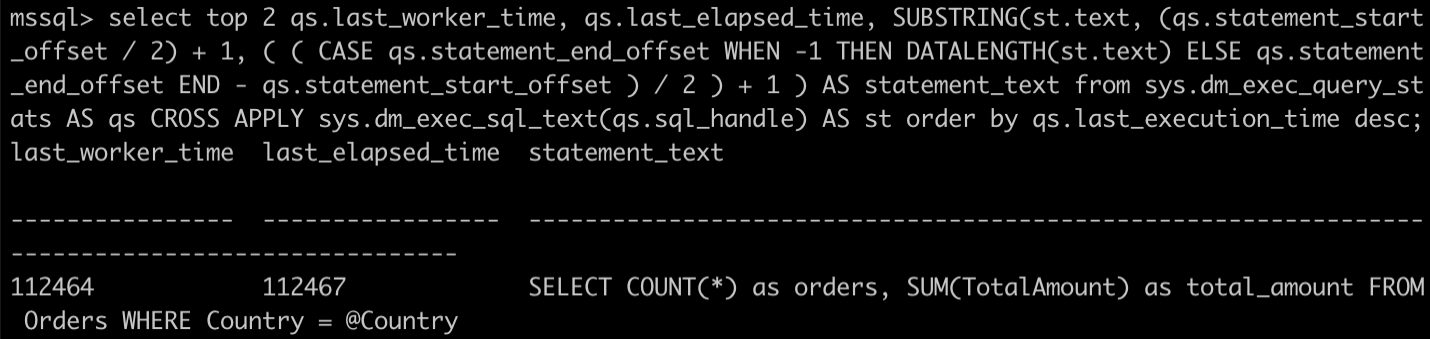 Fig. 1: Output for the
 last_worker_time and last_elapsed_time query
The last_worker_time and last_elapsed time are fairly similar, so this isn’t an example of a waiting query. Nonetheless, the overall time is high, as the query is inefficient.
To investigate the stored procedure, run SET STATISTICS PROFILE ON and then execute the stored procedure again. After the procedure results, you get a data table showing each section of the query plan and its cost.
Doing this before running your stored procedure outputs a table. The columns of note are LogicalOp, Argument, DefinedValues, and TotalSubtreeCost. The LogicalOp, Argument, and DefinedValues columns tell you what operation is being performed and on which entity. The TotalSubtreeCost tells you how much this operation costs.
For the stored procedure, this output identifies the following operation as being the most expensive:
Clustered Index Scan OBJECT:([master].[dbo].[Orders].[PK__Orders__C3905BAF72AEC27B]), WHERE:([master].[dbo].[Orders].[Country]=[@Country])
This shows that the query is executing a Clustered Index Scan on the table when performing the WHERE part of the query. A clustered index scan is generally slower than a seek operation, as it retrieves all rows from a table or view by scanning the entire clustered index. On the other hand, a seek operation uses the index to directly locate the rows that match the specified criteria and is, therefore, quicker.
This shows that you need to add an index to the Orders table to speed up the stored procedure. You can add an index on the Country and TotalAmount columns with the following command:
CREATE INDEX IX_Orders_Country_Total ON Orders (Country, TotalAmount);
Now, run the stored procedure again and check the execution time using the sys.dm_exec_query_stats view.
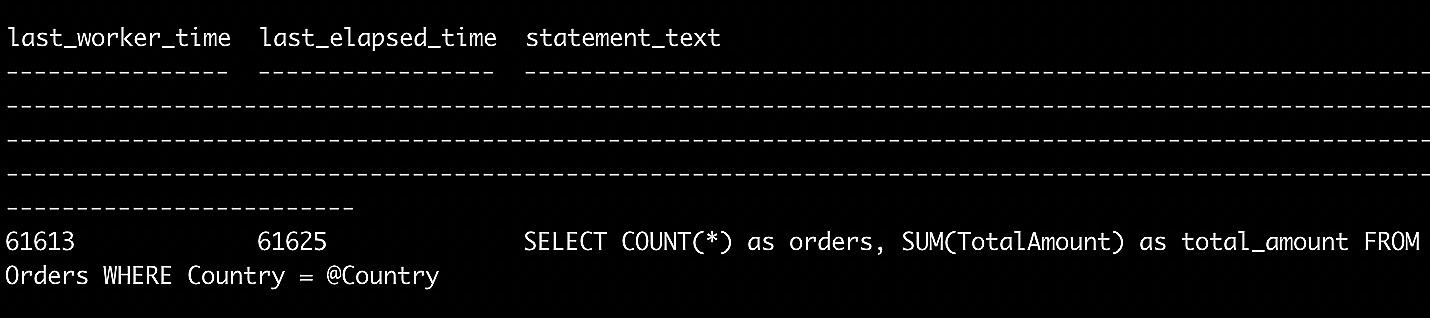 Fig. 2: Running the stored procedure using the
 sys.dm_exec_query_stats view
You can see that you’ve almost halved the execution time of the stored procedure by simply adding the index.
If you take a look at the query plan, you should also see that the clustered index scan from before has now changed to an Index Seek as follows:
Index Seek      OBJECT:([master].[dbo].[Orders].[IX_Orders_Country_Total]),
SEEK:([master].[dbo].[Orders].[Country]=[@Country]) ORDERED FORWARD
[master].[dbo].[Orders].[TotalAmount]
This shows that the query is performing an index seek on the IX_Orders_Country_Total index you created instead of on the whole table primary key index as before.
Apply these best practices to systematically identify and fix SQL Server long running queries in your environment.
Monitor query performance regularly. Use the sys.dm_exec_query_stats view and Query Store reports to track execution times over time. Establish performance baselines so you can quickly detect when a query regresses beyond acceptable thresholds.
Analyze execution plans. When troubleshooting a slow query, use SET STATISTICS PROFILE ON or include the actual execution plan in SSMS. Examine the plan for expensive operators, table scans, missing index suggestions, and cardinality estimation issues.
Keep statistics updated. Outdated statistics cause the query optimizer to make poor decisions about execution plans. Run UPDATE STATISTICS regularly or enable the auto update statistics option on your databases to ensure the optimizer has accurate data distribution information.
Use proper indexing strategies. As demonstrated in the stored procedure example above, adding the right indexes can dramatically reduce query execution time. Use the missing index DMVs (sys.dm_db_missing_index_details) to identify index recommendations, but evaluate each suggestion carefully to avoid over-indexing, which can slow down write operations.
Prefer set-based operations over cursors. Cursors process rows one at a time and are significantly slower than set-based queries for most operations. Rewrite cursor-based logic as set-based queries whenever possible.
Test and validate changes. After applying any optimization, measure the query’s execution time, CPU usage, and logical reads before and after. Use SET STATISTICS TIME ON and SET STATISTICS IO ON to capture precise metrics and confirm the improvement.
Manual DMV queries are useful for ad-hoc investigation, but production environments benefit from continuous, automated monitoring that alerts you to long running queries before they impact end users.
Site24x7’s Microsoft SQL Server Insight Monitoring provides real-time visibility into slow queries, expensive queries, top sessions, locks, and wait statistics. The monitoring agent tracks key metrics including average execution time, CPU time, physical reads, and execution counts for each query, giving you a centralized dashboard to identify performance regressions as they occur.
With configurable threshold-based alerts, you can receive notifications when query execution times exceed defined limits. This proactive approach ensures that long running queries are caught early, reducing the risk of extended outages or degraded user experience. The integration with Site24x7’s broader infrastructure monitoring also lets you correlate SQL Server performance with server-level metrics such as CPU utilization, memory pressure, and disk I/O.
SQL Server long running queries can result from a variety of factors, including inefficient query logic, missing indexes, outdated statistics, resource contention, and suboptimal execution plans. By using DMVs like sys.dm_exec_requests and sys.dm_exec_query_stats, analyzing execution plans, and leveraging Query Store for historical tracking, you can systematically identify and resolve the root causes of slow query performance.
Combining these manual investigation techniques with automated monitoring tools ensures that performance bottlenecks are detected and addressed before they impact your applications and users.
Site24x7's Microsoft SQL Server Insight Monitoring automatically captures slow queries, expensive queries, and top sessions in real time. The monitoring dashboard displays execution times, CPU usage, and I/O metrics, helping you prioritize which queries need optimization.
Yes, Site24x7 APM Insight's distributed tracing links slow SQL queries to the application transactions that triggered them. You can see the complete request path from user action to database call, identifying exactly which code paths cause slow queries.
Yes, Site24x7 provides threshold-based alerting for SQL Server performance metrics. You can configure thresholds for query execution times, CPU usage, and wait statistics, and receive alerts when values exceed defined limits so you can address performance issues before they impact end users.
A long running query actively consumes CPU resources while processing data, often due to missing indexes or inefficient query logic. A blocked query is waiting for another process to release a lock on a resource. Both types can degrade SQL Server performance, but they require different troubleshooting approaches—execution plan analysis for long running queries and lock investigation for blocked queries.
Query Store captures query execution statistics automatically once enabled. Navigate to the Query Store reports in SQL Server Management Studio and use the Top Resource Consuming Queries view to sort by total duration or average duration. This helps identify consistently long running queries over time, even after server restarts.