Zapier
Site24x7 integration with Zapier helps you move data between the various third party apps you use.
Create New Zap with Site24x7
- Click Admin > Third Party Integration > Zapier.
- Click the Zapier Integrate button.
- Login to Zapier with your Zapier Username and Password.
- If you dont have an account already, click Sign Up.
- Click Make a Zap to create a new Zap.

- Choose the appropriate Trigger and Action in the Trigger and Action screen.
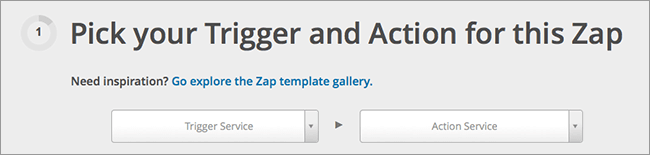
- Select Site24x7 from the dropdown list in Trigger Service.
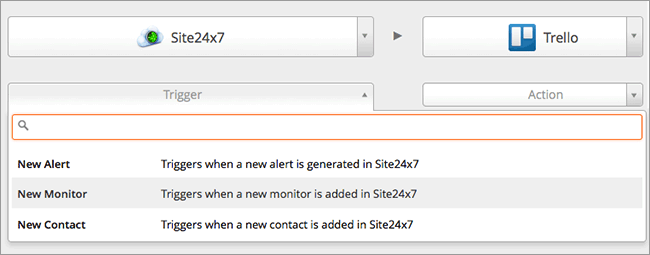
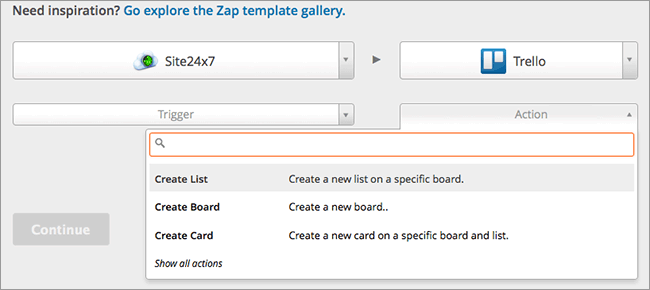
- Choose your custom service under Action service dropdown.
- Choose appropriate Site24x7 account when prompted to Connect a Site24x7 Account.
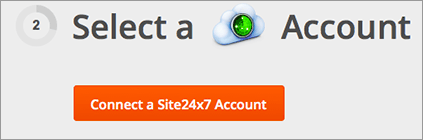
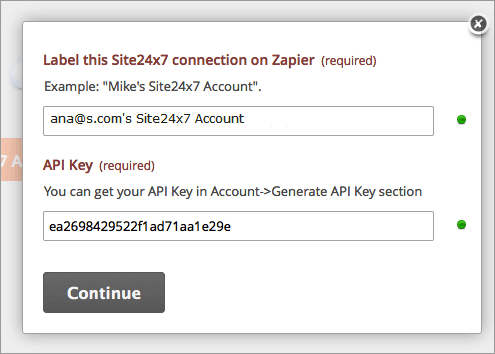
- Provide a name for the Site24x7 account and provide your unique API Key to validate your Site24x7 account.
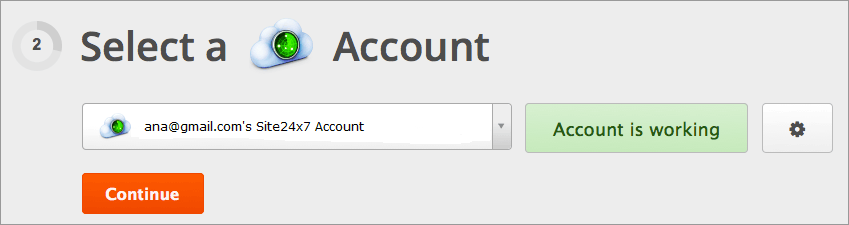
- Once your Site24x7 account is verified, Zapier will show you the message "Account is working". Click Continue to proceed.
- Configure your chosen third party by providing a name.
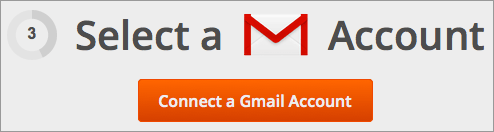
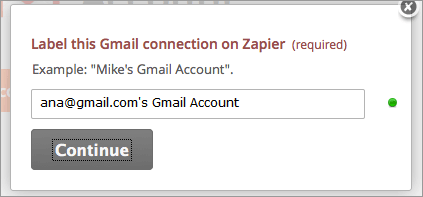
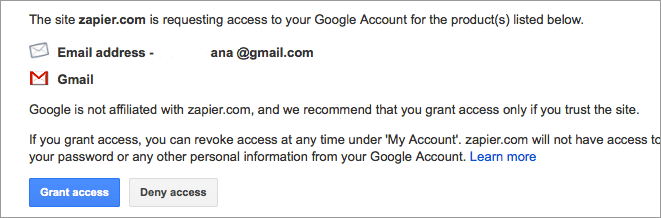
- Provide access if the third party service of your choice requires any kind of authentication.
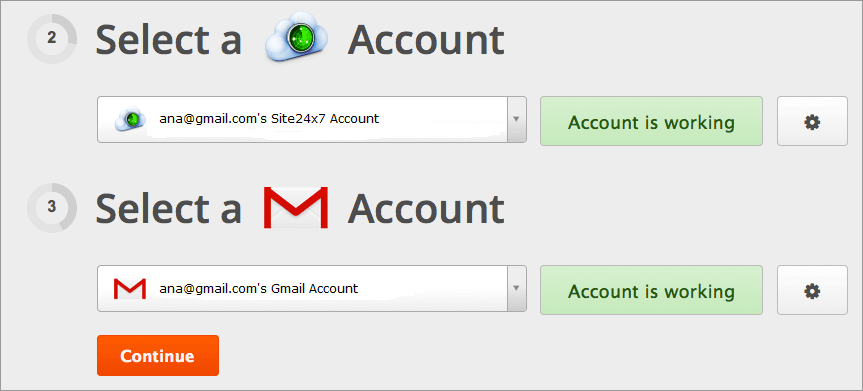
- Once authenticated, you will see a message stating that the account is working.
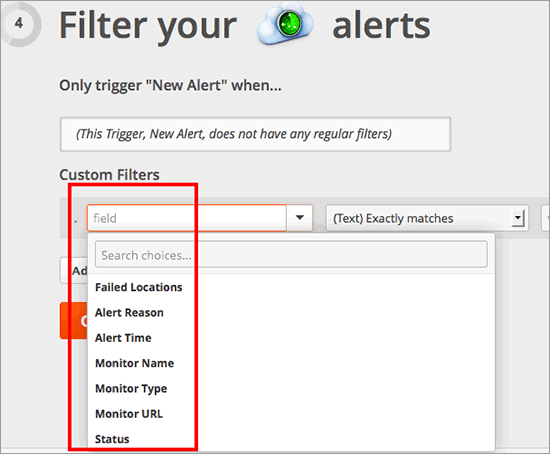
- After both trigger and action are configured, decide what types of alerts should create the action in your third party service.
The following alerts are supported by Site24x7.
- Failed Locations
- Alert Reason
- Alert Time
- Monitor Name
- Monitor URL
- Status
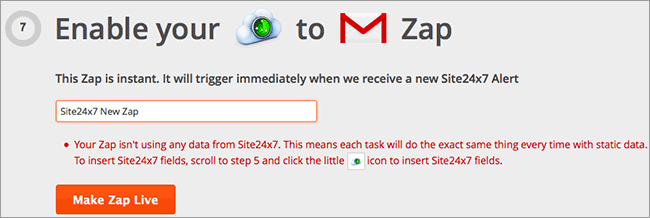
- Once the configuration is complete, you can either try out a sample Zap from Site24x7 or click Make Zap Live.
- Name the configured Zap and use the toggle button to activate your Zap.