Existing users of PagerDuty can use this integration to consolidate how notifications and on-call support are handled.
Integrate with PagerDuty
Click Admin > Third Party Integration > PagerDuty.
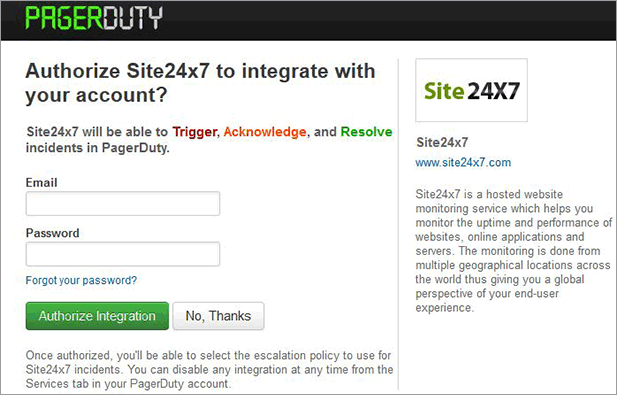
Click on the PagerDuty button to integrate your account with PagerDuty.
Enter your login credentials in the PagerDuty screen and click Authorize Integration to successfully integrate with your PagerDuty account.
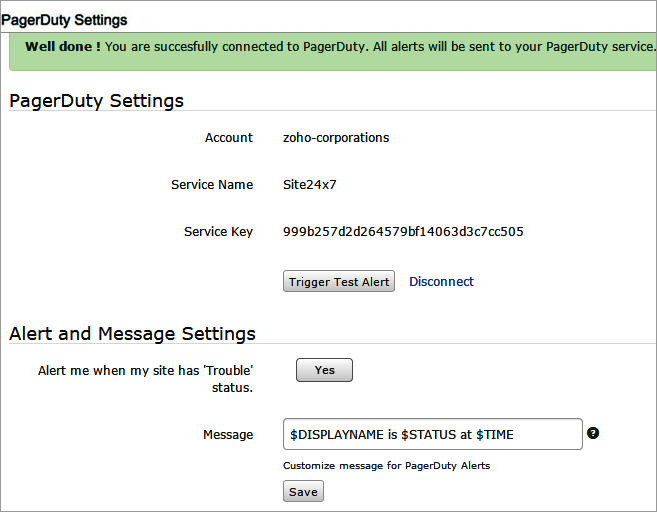
A sucessful integration will display the following message.
Specify the following details to configure alert and message settings:
Trigger Test Alert: Enable the toggle button to receive test mail from PagerDuty
Alert me when the site has 'Trouble' status: Enabling the toggle button will alert when your site has a trouble status.
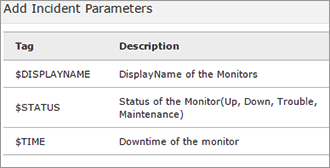
Message: Customize the message with PagerDuty alerts. The default message format will be $DISPLAYNAME is $STATUS at $TIME where $DISPLAYNAME denotes the display name of the Monitor. $STATUS denotes the status of the Monitor when the alert is sent. The status can be Up, Down, Trouble or Maintenance. $TIME denotes the time on when your monitor went down.
Click Save.
Was this document helpful?
Sorry to hear that. Let us know how we can improve this document.
Thanks for taking the time to share your feedback. We’ll use your feedback to improve our online help resources.