Uptime Button
Embed an Uptime Button on your site and show uptime metrics to your visitors.
Create an Uptime Button
- Click Admin > Portal Integration > Uptime Button
- Click Add Uptime Button in Uptime Buttons screen.
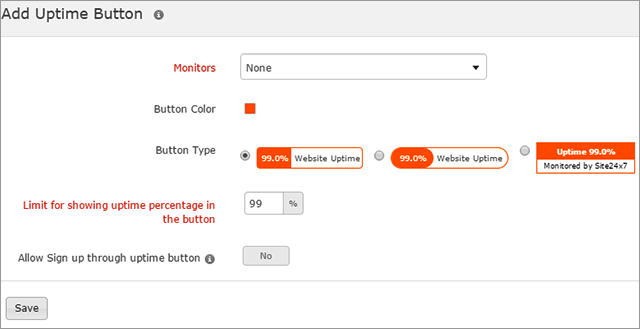
- Specify the following details to add the Uptime Button:
- Monitors: Select the monitor from the dropdown list.
- Button Color: Choose a color for your button.
- Button Type: Select an appropriate button type from the list provided.
- Limit for showing uptime percentage in the button: The uptime percentage will be hidden when the uptime value is less than the configured value.
- Allow SignUp through uptime button: Check the option to allow website visitors to sign-up for Site24x7 service through the Uptime Button. Site24x7 will provide a link to our sign up page when the visitors click the Uptime Button.
- Click Save.
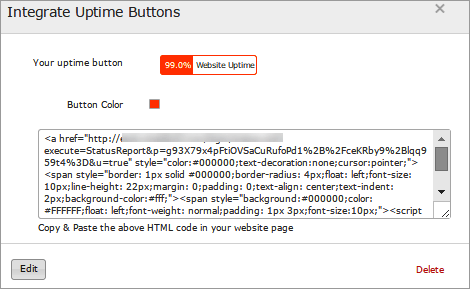
- Once saved, you will navigate to Integrate Uptime Button window.
- Uptime Button code: Copy and paste the button code onto your webpage to display the Uptime Button feature in your website.
- Your uptime button: Shows the uptime button which you have created.
- Button color: Choose the appropriate color for the uptime button.
- The Uptime Button created will be automatically added in Uptime Button screen with those already created.
Edit Button Uptime Button
- Click on the Uptime Button which you want to edit.
- Click Edit in Integrate Uptime Button window.
Delete the Status View
- Click on the Uptime Button which you want to delete.
- Click Delete in Integrate Uptime Button window.


