Operations Dashboard
Get an at-a-glance status of all applications and servers monitored. Simple embed options make it really useful for a NOC.
Add Dashboard View
- Click Admin > Portal Integration > Operations Dashboard.
- Click Add Dashboard View in Operations Dashboard screen.
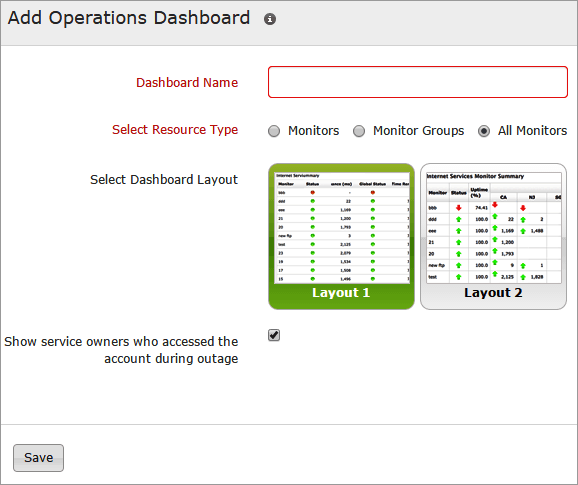
- Specify the following details to add an Operations Dashboard:
- Dashboard Name: Provide an appropriate display name for identification purpose.
- Select Resource Type: Select the required monitors or monitor groups from the dropdown list for which you need a dashboard view for.
- Select Dashboard Layout: Select the required layout from the list provided.
If Layout 1 is selected, mention the following detail:
- Show service owners who accessed the account during outage: Check this option to show the operators who visited the account during the outage.
- Click Save.
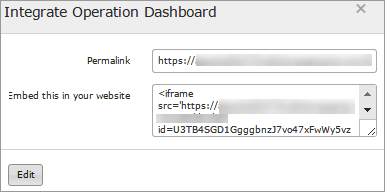
- Once saved, this will navigate to Integrate Operation Dashboard window.
- To View the Operations Dashboard Links, perform anyone of the following:
- Permalink: A default permalink is provided for the users. You can use this link to view the operations dashboard.
- Embed this in your website: Use this Iframe code to embed into any other HTML document.
- The Dashboard view created will be automatically added in the Operations Dashboard screen with those already created.
A default Dashboard view is also provided for the users in Operations Dashboard screen where they can edit and add the required monitors for their dashboard view.
Edit the Operations Dashboard
- Click on the Operation Dashboard view which you want to edit.
- Click Edit in Integrate Operation Dashboard window.
Delete the Operations Dashboard
- Click on the Operation Dashboard View which you want to delete.
- Click Delete in Integrate Operation Dashboard window.


