API Guide
Knowledge Base
Forums
Support
Sign Up
Overview
Introduction
Monitor
Monitor Group
Configuration Profiles
Alarms Engine
Global Monitoring Locations
Server Monitoring Agent
On-Premise Poller
Mobile Network Poller
APM Insight
Real User Monitoring
Cloud Monitoring
Tutorial
Release Notes
Internet Service Metrics
APM
APM for Java
APM for .NET
APM for Ruby
Real User Monitoring
Android APM
iOS APM
Server Metrics
AWS Cloud Metrics
Virtualization Metrics
Network Metrics
Reports
Admin
Adding a Monitor
Monitor Groups
Import Monitors
User Management
Configuration Profiles
Server Monitor
Operations
Report Settings
Share
Developer
Third Party Integration
General
Help
Admin
Operations
Log Reports
Log Reports
Access Log Report
Click
Admin
>
Operations
>
Log Report
.
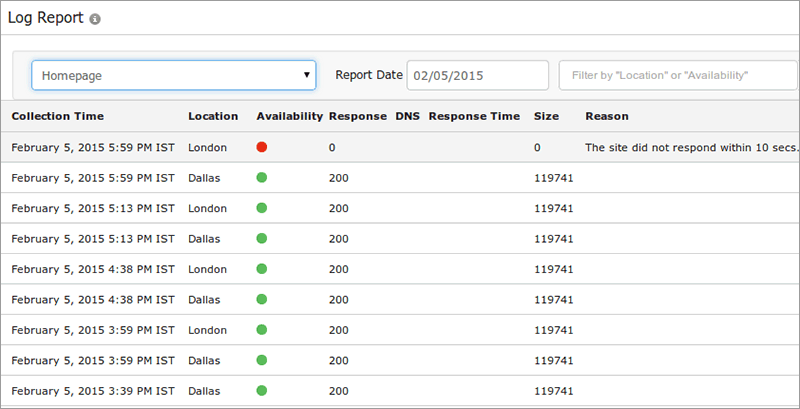
Select the required monitor and choose the required report date from the menu.
Various logs of that particular monitor for the chosen time period will be displayed.
You can also choose to filter the log report by "Location" or "Availability".
Enter Up or Down for Availability and type any location to filter the displayed logs.
Was this document helpful?
YES
NO
Sorry to hear that. Let us know how we can improve this document.
Submit
Thanks for taking the time to share your feedback. We’ll use your feedback to improve our online help resources.
Submit
Top
Help
Admin
Operations
Log Reports