Add Threshold and Availability for Web Page Analyzer
Click Admin > Configuration Profiles > Threshold and Availability.
Click Add Threshold and Availability in Threshold and Availability screen.
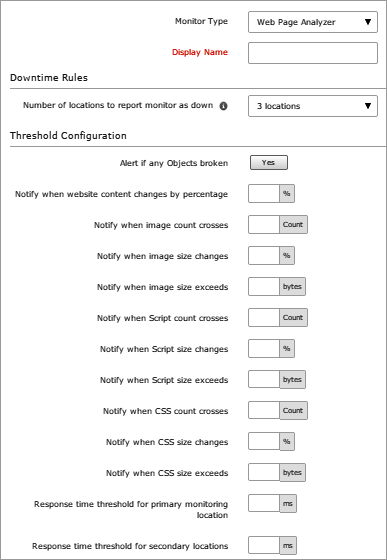
Specify the following details for adding threshold and availability for Web Page Analyzer:
Monitor Type: Select Web Page Analyzer from the drop down list.
Display Name: Provide a label for identification purpose.
Number of locations to report monitor as down: Choose from the drop down to receive alert notification when the website is down from specified number of locations.
Specify the following details for Threshold Configuration:
Alerts if any objects broken: Enable to option to alert if there are any broken objects such as images, CSS, Javascript etc found in the webpage while monitoring.
Notify when the website content changes by percentage: Enter a value in percentage to get notified when the content in your website is changed beyond the specified value.
Notify when image count crosses: Receive alerts when the total number of images in your website cross the set threshold value.
Notify when image size changes: Get notified when the image size varies from the set value in percentage.
Notify when image size exceeds: Alerts will be triggered if the total image size exceeds the set value in bytes.
Notify when script count crosses: Receive alerts when the total number of scripts in the webpage cross the set threshold value.
Notify when script size changes: Get notified when the total size of the scripts in the webpage varies from the set value.
Notify when script size exceeds: Alerts will be triggered if the size of the scripts exceeds the set threshold value.
Notify when CSS count crosses: Receive alerts when the total CSS count cross the set threshold value.
Notify when CSS size changes: Get notified when the CSS size varies from the set value in percentage.
Notify when CSS size exceeds: Alerts will be triggered if the CSS size exceeds the set value in bytes.
Response time threshold for primary monitoring location: Enter a value in milliseconds to get notified when the response time from primary location crosses the specified value.
Response time threshold for secondary locations: Enter a value in milliseconds to get notified when the response time from secondary location crosses the specified value.
Click Save.
The threshold and availability profile created for Web Page Analyzer will be automatically listed in Threshold and Availability screen along with the others already created.
A default threshold and availability profile for Web Page Analyzer will be automatically listed in Threshold and Availability screen when the users for the first time click Admin> Inventory > Monitors > Add Monitor > Web Page Analyzer.
Edit Threshold and Availability for Web Page Analyzer
Click the profile which you want to edit.
Edit the parameters which needs to be changed in Add Threshold and Availability window.
Click Save.
Delete Threshold and Availability for Web Page Analyzer
Click the profile in the Threshold and Availability screen which needs to be deleted.
This will navigate to Add Threshold and Availability window.
Click Delete.
Was this document helpful?
Sorry to hear that. Let us know how we can improve this document.
Thanks for taking the time to share your feedback. We’ll use your feedback to improve our online help resources.