Linux Server Monitoring
Monitor critical metrics such as CPU, memory, disk utilization, processes and network traffic of Linux servers and view them in a single dashboard.
How Can I...
Add a Linux Server Monitor
- Click Admin > Inventory > Monitors > Add Monitor.
- Select Server Monitor in Add Monitor page.
- Click View Instruction under Linux and copy paste the commands in your console.
Install the Linux Agent
Linux agent can be installed via organization proxy.
- [64-bit:]
The following command needs to be executed in the Linux terminal when Linux server is not behind the proxy:
sudo wget https://plus.site24x7.com//sagent//Site24x7_Linux_64bit.install
sudo chmod 755 Site24x7_Linux_64bit.install
sudo ./Site24x7_Linux_64bit.install -i -key=<DEVICE_KEY>
To install the agent via organizational proxy:
sudo wget https://plus.site24x7.com//sagent//Site24x7_Linux_64bit.install
sudo chmod 755 Site24x7_Linux_64bit.install
sudo ./Site24x7_Linux_64bit.install -i -key=<DEVICE_KEY> -proxy=user:password@proxyhost:proxyport
or
sudo ./Site24x7_Linux_64bit.install -i -key=<DEVICE_KEY> -proxy=user@host:port
or
sudo ./Site24x7_Linux_64bit.install -i -key=<DEVICE_KEY> -proxy=host:port
- [32-bit:]
The following command needs to be executed when Linux server is not behind the proxy:
sudo wget https://plus.site24x7.com//sagent//Site24x7_Linux_32bit.install
sudo chmod 755 Site24x7_Linux_32bit.install
sudo ./Site24x7_Linux_32bit.install -i -key=<DEVICE_KEY>
To install the agent via orgazational proxy:
sudo chmod 755 Site24x7_Linux_32bit.install
sudo ./Site24x7_Linux_32bit.install -i -key=<DEVICE_KEY> -proxy=user:password@proxyhost:proxyport
or
sudo ./Site24x7_Linux_32bit.install -i -key=<DEVICE_KEY> -proxy=user@host:port
or
sudo ./Site24x7_Linux_32bit.install -i -key=<DEVICE_KEY> -proxy=host:port
Device key can be obtained from Admin > Developer > Device Key.
Install Linux Agent while launching an Amazon Machine Image
- While launching an already created Amazon Machine Image (AMI) via EC2 management console
The folllowing steps will invoke installation of Site24x7 Linux Agent when the AMI is launched:
- While creating a new Amazon Machine Image
/etc/rc.local is the script file that is always called during the boot time of a Linux server. Adding the following script in the /etc/rc.local file will trigger Site24x7 Linux Agent installation when the new instance boots.
[64-bit:AMI]
if [ ! -f /etc/init.d/site24x7monagent ]; then
wget https://plus.site24x7.com//sagent//Site24x7_Linux_64bit.install
chmod 755 Site24x7_Linux_64bit.install
./Site24x7_Linux_64bit.install -i -key=<DEVICE_KEY>
fi
if [ ! -f /etc/init.d/site24x7monagent ]; then
wget https://plus.site24x7.com//sagent//Site24x7_Linux_32bit.install
chmod 755 Site24x7_Linux_32bit.install
./Site24x7_Linux_64bit.install -i -key=<DEVICE_KEY>
fi
Device key can be obtained from Admin > Developer > Device Key.
- Agent installation during AWS Autoscaling
Autoscaling allows you to scale your Amazon EC2 capacity according to the conditions defined by you. When additional resources are allocated, you can choose to install Site24x7 Linux Agent in the additional resources.
The following steps will help you install agent during AWS Autoscaling:
- To create launch configuration :
as-create-launch-config <CONFIG_NAME> --image-id <AMI_ID> --instance-type <INSTANCE_TYPE> --user-data-file InstallSite24x7LinuxAgent.sh
For example
as-create-launch-config TestLaunchConfig --image-id ami-bd4ed56f --instance-type t1.micro --user-data-file InstallSite24x7LinuxAgent.sh
- To update autoscaling group:
as-update-auto-scaling-group <GROUP_NAME> --launch-configuration <CONFIG_NAME>
For example
as-update-auto-scaling-group TestAutoScalingGroup --launch-configuration TestLaunchConfig
- Agent installation via AWS templates
In AWS CloudFormation, applications can be launched via templates associated to AMIs.
To install the Site24x7 Agent, add the following as part of UserData to the template used for launching applications.
"UserData" :{
"Fn::Base64" : {
"Fn::Join" : [ ",", [
"#!/bin/bash\n",
"sudo wget https://plus.site24x7.com//sagent//Site24x7_Linux_64bit.install\n",
"sudo chmod 755 Site24x7_Linux_64bit.install\n",
"sudo ./Site24x7_Linux_64bit.install -i -key=<DEVICE_KEY>\n"]]
}
}
Device key can be obtained from Admin > Developer > Device Key.
- Installation via AWS Command Line Interface (CLI)
The following details will help you install Site24x7 Agent via AWS CLI:
- Edit the script file to include your DEVICE Key in DEVICE_KEY="
Re-install the Agent
- The following commands needs to be executed to re-install the agent
[64-bit:]
sudo wget https://www.site24x7.com//sagent//Site24x7_Linux_64bit.install
sudo chmod 755 Site24x7_Linux_64bit.install
sudo ./Site24x7_Linux_64bit.install -ri
[32-bit:]
sudo wget https://www.site24x7.com//sagent//Site24x7_Linux_32bit.install
sudo chmod 755 Site24x7_Linux_32bit.install
sudo ./Site24x7_Linux_32bit.install -ri
- The following use cases will help you configure proxy during re-installation if you have enabled a proxy server:
user:password@host:port
user@host:port
host:port
Restart the Agent
The command below is used to restart the agent
sudo /etc/init.d/site24x7monagent restart
Uninstall the Linux agent
The command below is used to uninstall the agent from your machine
sudo /opt/site24x7/monagent/bin/uninstall
Bulk installation via Chef services
The Chef cookbook is available in the following links
Chef community - http://community.opscode.com/cookbooks/site24x7
Github - https://github.com/site24x7/chef-site24x7
To install and download Linux server monitoring agents in bulk via Chef services, follow the steps below:
- Download Site24x7 cookbook into your chef-repo/cookbooks.site24x7 directory. The name of the cookbook directory should be site24x7
https://github.com/site24x7/chef-site24x7
- Set your DEVICE KEY. Edit site24x7/attributes/default.rb and replace YOUR_USER_DEVICE_KEY with your unique Site24x7 DEVICE Key.
* 'default[:Site24x7][:DEVICEkey]' = "YOUR_USER_DEVICE_KEY"
Device key can be obtained from Admin > Developer > Device Key.
- Set proxy attribute if necessary
* 'default[:Site24x7][:proxy]' = "user:password@proxyhost:proxyport"
- Upload the cookbook to your chef server or hosted chef
* 'knife cookbook upload site24x7'
- Include recipe[site24x7] in the run_list for all of your servers
* 'knife node run_list add NODES 'recipe[site24x7]''
- Run the chef-client on your nodes in either of the two ways described below,
* 'sudo chef-client -i 3600 -s 600' or a batch job.
Resource Check Profile
Resource Check Profiles can be used to monitor a resource on the server using server monitors. The resources to be monitored are added as checks to a resource check profile and this profile can be associated with any number of server monitors.
- URL Check : Check if a URL on the server is accessible. Only local URLs can be added.
- Port Check : Check if a port is accessible on the server.
- File Checks
- Access Check : Alert when a file is accessed.
- Permissions Check : Alert is raised when the file's metadata attributes are modified.
- Last Modified Check : Get notified when a file is modified or stays unmodified for a period of time.
- Size Check : Check if a file's size has exceeded a set threshold.
- Content Check : Search for some specific content within a file.
- Directory Checks
- Access Check : Alert when a directory is accessed.
- Permissions Check : Alert is raised when the directory's metadata attributes are modified.
- Size Check : Check if a directory's size has exceeded a set threshold.
- File Availability : Get notified when a file is created/deleted within a directory.
- Subdirectory Availability : Get notified when a sub directory is created/deleted within a directory.
- Windows Event Log : Configure event log rules to watch. When the configured log occurs, an alert is sent.
- Linux Syslog : Configure syslog rules to watch. When the configured log occurs, an alert is sent.
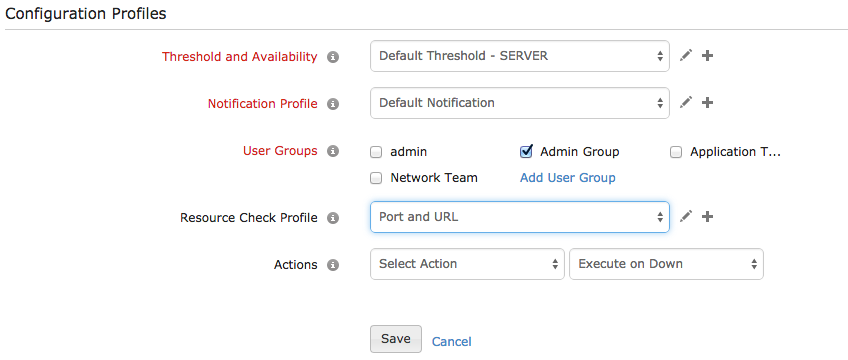
A resource check profile can be associated with a monitor from the Edit Monitor screen as shown below. To know more about each check, click here.
Add Resource Check Profile
- Login to Site24x7.
- Select Admin > Server Monitor > Resource Check Profile.
- Select Add Resource Check Profile.
- The Add Resource Check Profile screen is displayed. Select the required check type.
- The following are common for all checks.
a. Display Name : Specify a name for the profile. This is common to all checks within the profile.
b. Check Name : Specify a name to identify an individual resource check.
- Enter the details unique to each check type.
- Click Add Check.
- To add more checks, select the type of check from the menu and add.
- Click Save to save the profile with the checks.
Edit Resource Check Profile
- Login to Site24x7.
- Select Admin > Server Monitor > Resource Check Profile.
- The list of profiles is displayed. Click on the profile to edit. The Edit Resource Check Profile screen opens.
- To edit a check, select the check from the Configured Checks list, edit the values and click Update.
- To add a check, click on the type of check from the menu and add.
- To delete a check from a profile, select the check from the Configured Checks list and click Delete.
- Click Save to save a profile with the checks.
Delete Resource Check Profile
- Login to Site24x7.
- Select Admin > Server Monitor > Resource Check Profile.
- The list of profiles is displayed. Click on the profile to delete. The Edit Resource Check Profile screen opens.
- Click Delete to delete the profile including all the checks.
A profile that is associated with a server monitor cannot be deleted, it can only be edited. Being an irreversible action, caution must be taken before deleting the profile.


