
Domain Squatting
Domain Squatting identifies impersonating domains that closely resemble your legitimate ones. It generates look-alike variations of your domain and checks their registration and nameserver information to identify domains that may be controlled by someone else.
Domain squatting can make it difficult to distinguish a legitimate domain from an impersonating one, especially when the variation involves a minor spelling change, different character, or another subtle modification. Detecting these domains helps you identify potential risks before they are used to impersonate your organization, host fraudulent websites, or support phishing and credential theft campaigns.
Benefits
Domain Squatting helps you:
- Identify registered look-alike domains.
- Distinguish registered and unregistered domain variations.
- Identify the techniques used to create look-alike domains.
- Check nameserver information to assess potential ownership.
- Review the activity status of identified domains.
Use cases
- Detect brand impersonation: Identify domains that closely resemble your organization's legitimate domains.
- Identify potential phishing domains: Find registered look-alike domains that could be used to direct users to fraudulent websites.
- Investigate suspicious registrations: Review domains using third-party nameservers to identify potentially unauthorized registrations.
- Track newly discovered domains: Use the First Seen information to identify when a domain first appeared in registry zone data.
- Review potential domain abuse: Examine registered domains and their status to prioritize domains for investigation.
How to identify squatting domains
- Log in to your Digital Risk Analyzer account.
- You can access Domain Squatting in either of the following ways:
- Navigate to Home > Domain Squatting.
- Navigate to Home > click any desired domain > click Domain Squatting from the left navigation menu.
- This page lists all your domains. To view the impersonating domains of a specific domain, click View Squatting Domains.
NoteDomain squatting lists impersonating domains identified only for non-vendor domains. If a vendor domain is selected, Domain Squatting results are not available.
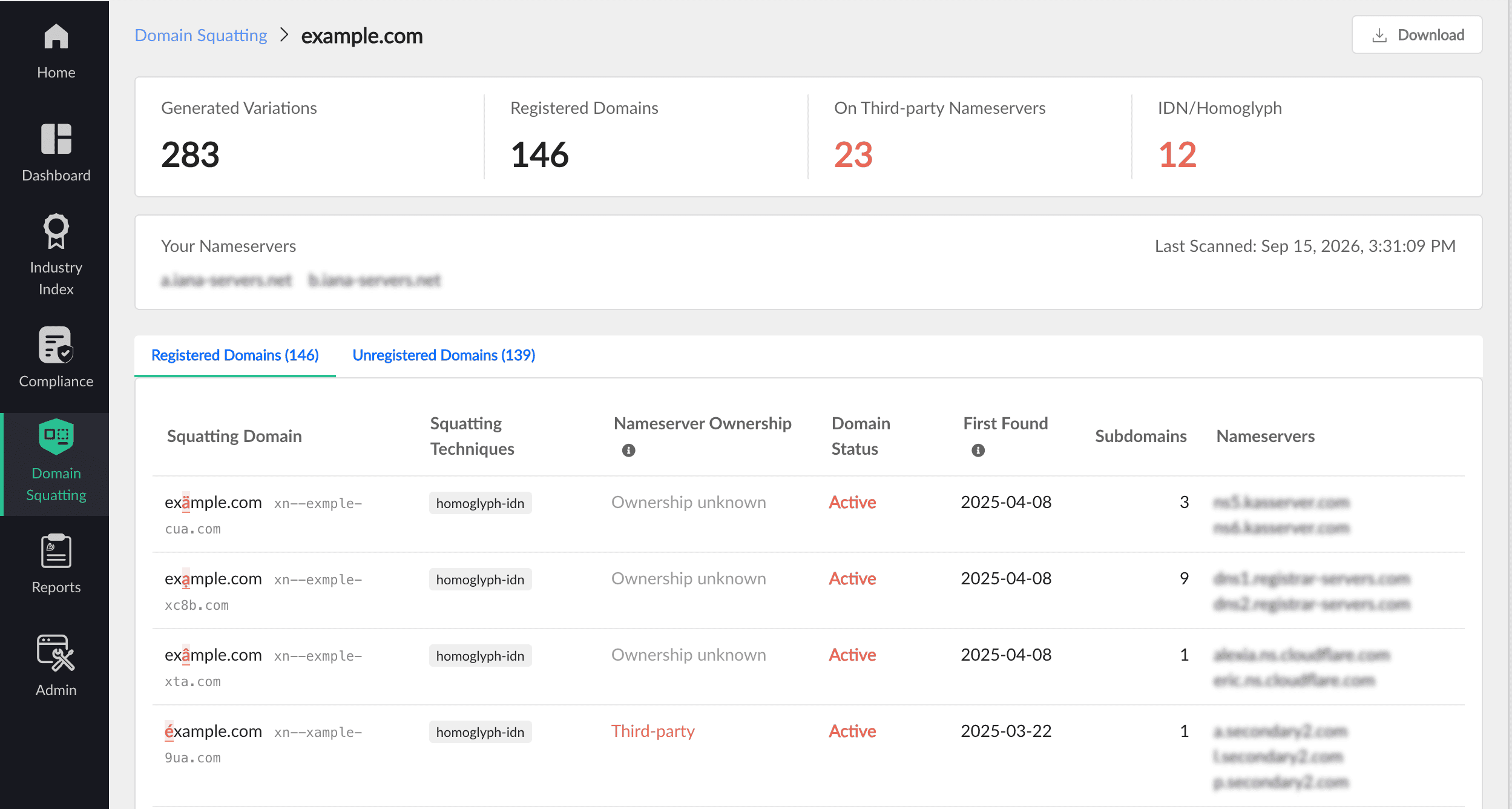
- The Domain Squatting page provides the following information:
- Generated Domains: Shows the look-alike domain variations generated for your selected domain. The results distinguish between:
- Registered Domains: Generated look-alike domains that are registered.
- Unregistered Domains: Generated look-alike domains that are not registered.
- Registered Squatting Domains: Displays the registered look-alike domains identified for your legitimate domain. You can review details such as the look-alike domain, squatting technique, nameserver status, domain status, and when the domain was first seen.
- Generated Domains: Shows generated look-alike variations that were not registered when they were scanned. These domains can help you understand the range of variations considered during detection.
- Squatting Techniques: Indicates the technique used to generate or identify the look-alike domain.
- Nameserver Ownership: Nameserver information helps assess whether a registered look-alike domain may belong to your organization or a third party. The following statuses are available:
- Self-owned: The domain uses nameservers associated with your domain and is likely owned by your organization.
- Third-party: The domain uses dedicated nameservers that are different from yours and may be controlled by someone else.
- Unknown: The domain uses shared DNS infrastructure or has no available nameserver information, so ownership cannot be established from nameservers alone.
NoteDomain Squatting compares the nameservers of registered impersonating domains with those of your legitimate domain. An impersonating domain using different, dedicated nameservers may be under someone else's control and could potentially be used for phishing, credential theft, or brand impersonation. Domains using shared DNS providers cannot be reliably classified based on nameservers alone and are therefore listed separately for manual review.
- Domain Status: Indicates whether the identified domain is currently Active, Inactive, or Unknown when unable to determine its status.
- Found on: Shows when the domain was first found in the registry zone data. This indicates when the domain first appeared in the registry and may be later than its actual registration date.
- Nameservers: Displays the nameserver information associated with the identified domain.
- Subdomains: Displays the subdomains identified for the look-alike domain, where available.
- Generated Domains: Shows the look-alike domain variations generated for your selected domain. The results distinguish between:
How to generate and download the Domain Squatting report
To generate a Domain Squatting report, follow the steps below:
- Click Download in the top right corner.
- In the pop-up that appears, you can select either Registered Domains, Unregistered Domains, or Both to include them in the report.
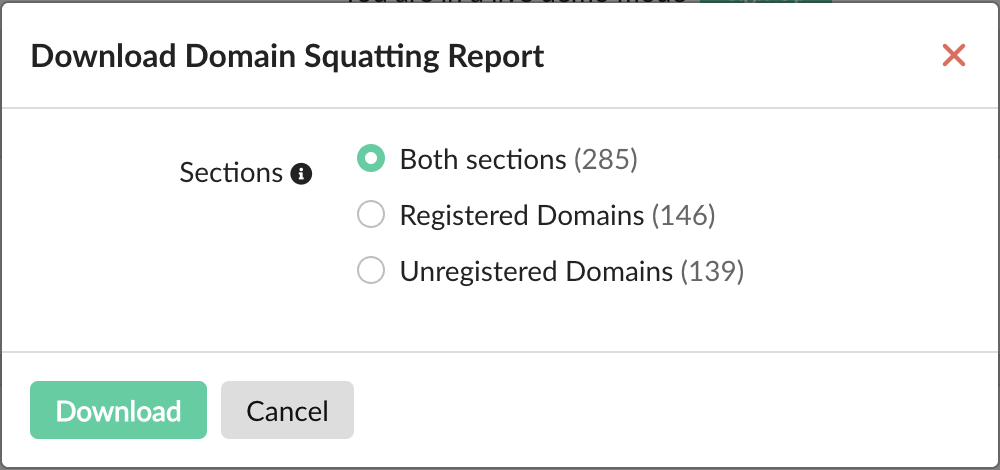
- Click Download.
The generated report shows:
- Registered squatting domains
- Generated variations
- Number of generated variations
- Number of registered variations
- IDN or homoglyph variations, where applicable
- Contents and navigation links for moving between sections
Rows and the navigation panel in the report are clickable, allowing you to navigate to the relevant section.
If a look-alike domain belongs to your organization, moving it to your own nameservers can prevent it from being reported as a potential third-party domain. You can also consider defensively registering common brand variants, such as misspellings, single-character substitutions, and the same label under other TLDs.